Event ticket scanning: online and offline check-in
A practical guide for event organizersAt the entrance, your team needs a straightforward process: read the ticket, check the result and admit the visitor. TicketTool connects event ticket scanning with your ticket inventory, using a phone, tablet or dedicated scanner. Prepare access for your staff, download ticket data for offline use and monitor check-in progress.
Whether you run a theatre, concert, club or festival, ticket sales and entrance control need to work together. You can also import tickets sold through another system and check their codes with TicketTool.
Planning ticket scanning for your event?
We can walk through your devices, entrance team, external tickets and preparations for unreliable internet access.
How to scan event tickets with a phone
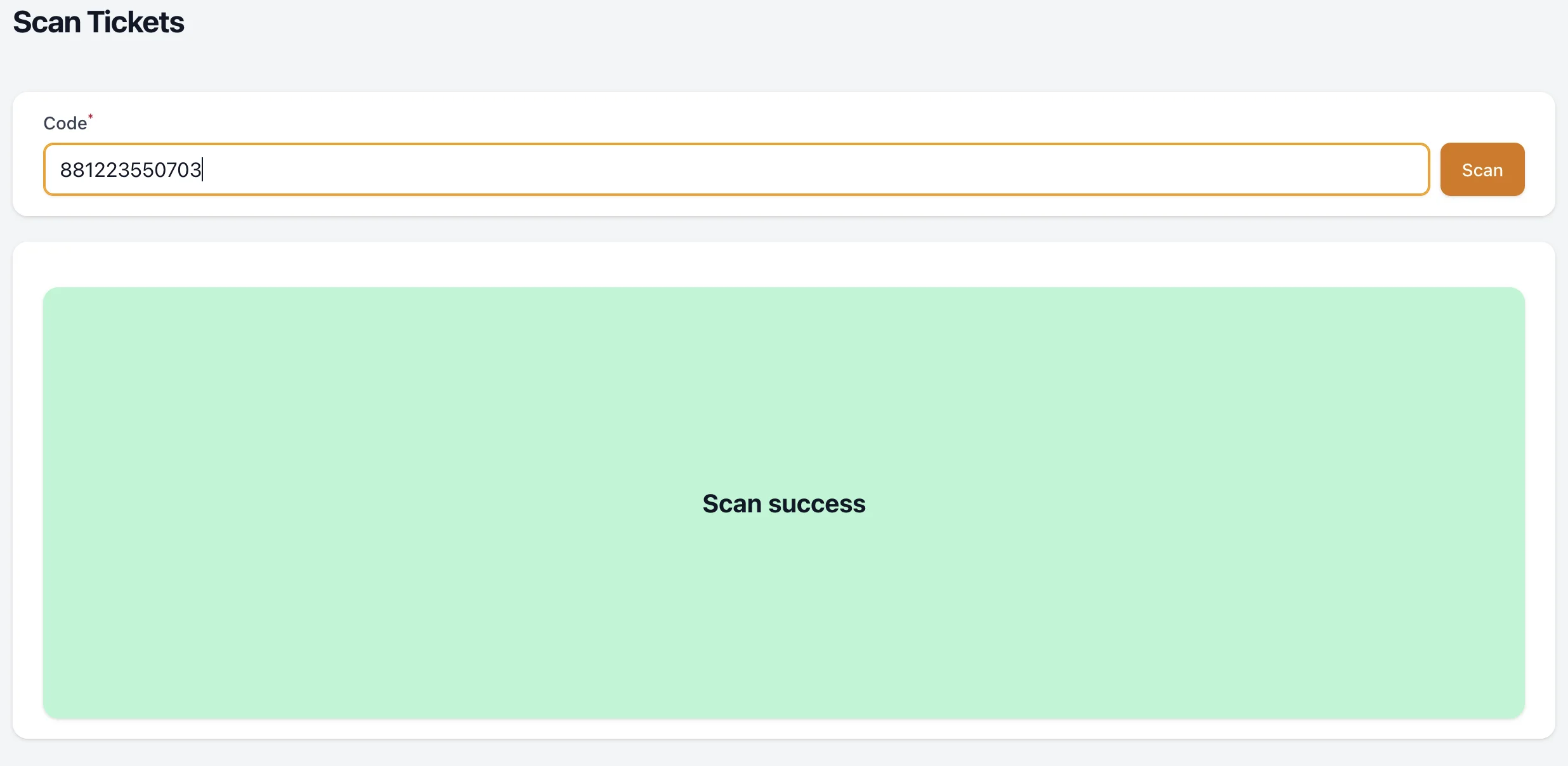
Your entrance team opens the app's scanning function and reads the QR code or barcode on the ticket. Visitors can present printed tickets or tickets on their phone screens. The code must be readable and belong to the available ticket inventory: a general QR reader is not a ticket validation system.
The scan result helps the operator decide whether to admit the visitor or refer the ticket for review. Assign a separate person to handle booking questions so an unclear ticket does not stop the main queue.
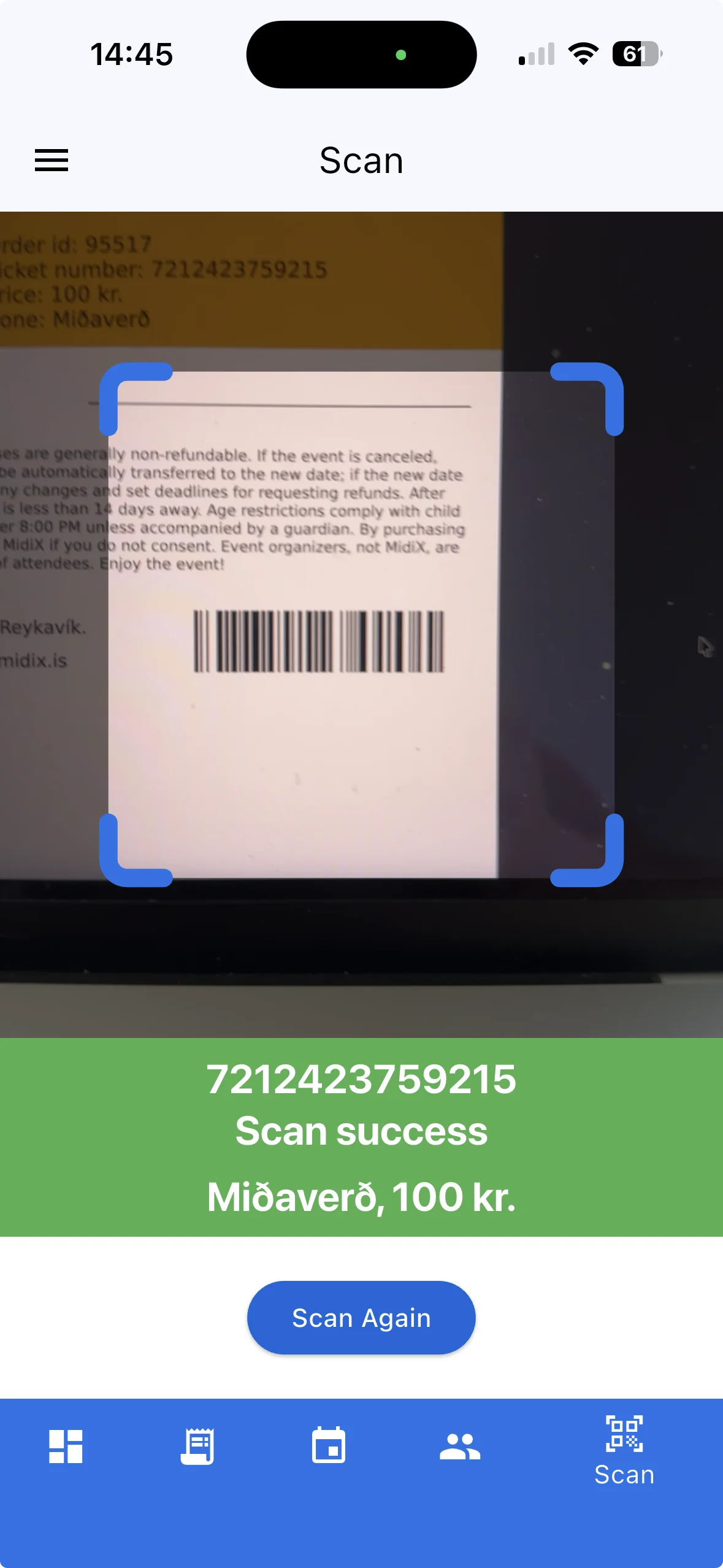
Scanner-only access for volunteers and temporary staff
Volunteers, students and temporary entrance staff can receive the Scanner role. They can scan tickets without access to sales figures or customer management. There is no need to give every entrance operator full administrator access.
You can send staff an email before the event, for example the day before, with installation and setup information. A QR code in that email authorizes access to the app. This code is a staff access credential, not a visitor's admission ticket.
Have the team install and set up the app before arriving at the entrance. A short test ahead of time avoids dealing with installation and authorization while visitors are waiting.
Offline ticket scanning when Wi-Fi or mobile reception fails
Reliable internet access is not guaranteed inside a venue. The app can download ticket data to the phone in advance and validate tickets without an active internet connection against that saved inventory.
Download or refresh the data as close to doors opening as practical, while a connection is available. An earlier download does not automatically contain later sales or changes. If a booking is cancelled and the ticket is released for sale again, its valid QR code may change.
An offline inventory is a snapshot. Agree how to handle later sales, cancellations and reconciliation between devices before the event. Without a data connection between devices, an operator must not assume their phone already knows what has been scanned at another entrance.
Ticket scanning with a tablet, computer or dedicated scanner
Alongside phone scanning, TicketTool supports workflows using a tablet or computer with an attached QR-code or barcode scanner. Choose your setup around the entrance layout, lighting, expected arrival peaks and available connectivity.
For large concerts, we recommend dedicated scanners for the main entrance lanes. A phone camera may take longer to capture a code in poor evening light. Phones are still useful for smaller events, extra checkpoints and mobile support.
Test your equipment with printed tickets and phone screens under the actual lighting conditions. Screen brightness, reflections and damaged printouts can affect scanning. Avoid planning capacity around an assumed fixed speed advantage.
Import external tickets by CSV and scan their existing codes
If tickets are sold through another platform, you can still use TicketTool for entrance control. Create a dedicated price category for the event, such as External Tickets, and upload a CSV file containing the external tickets into that category.
TicketTool can then validate the imported QR codes or barcodes. The code must be present in the imported inventory; scanning it does not automatically connect TicketTool to the other provider's database.
Confirm the required CSV format and test a few original tickets before the event. Agree how later sales and cancellations from the external platform will be reflected in your inventory. TicketTool also supports exporting ticket data for exchange with other systems.
Set the time window for ticket scanning
You can configure how long before an event starts scanning is allowed and how long after the start it remains available. This lets you match the scanning window to doors opening and your late-arrival policy.
Check the window together with the event start time. A valid ticket should not cause avoidable confusion because the configured scanning hours differ from the actual entrance schedule.
Handle accidental repeat scans without counting another admission
A visitor showing several tickets on a phone may accidentally leave the same code on screen. TicketTool has a configurable short repeat-scan interval: for example, scans of the same ticket within 15 seconds can be treated as one scan.
This helps avoid unnecessary disputes over an accidental repeat scan. It does not turn one ticket into admission for several people or provide general re-entry permission. Operators must still make sure the next visitor presents the next ticket.
You can also choose whether the ticket displays its code once or twice. Showing it once can prevent visitors from mistaking a small and a large copy of the same code for separate tickets. Read more about ticket formats and delivery.
Attendance statistics in the administrator's app
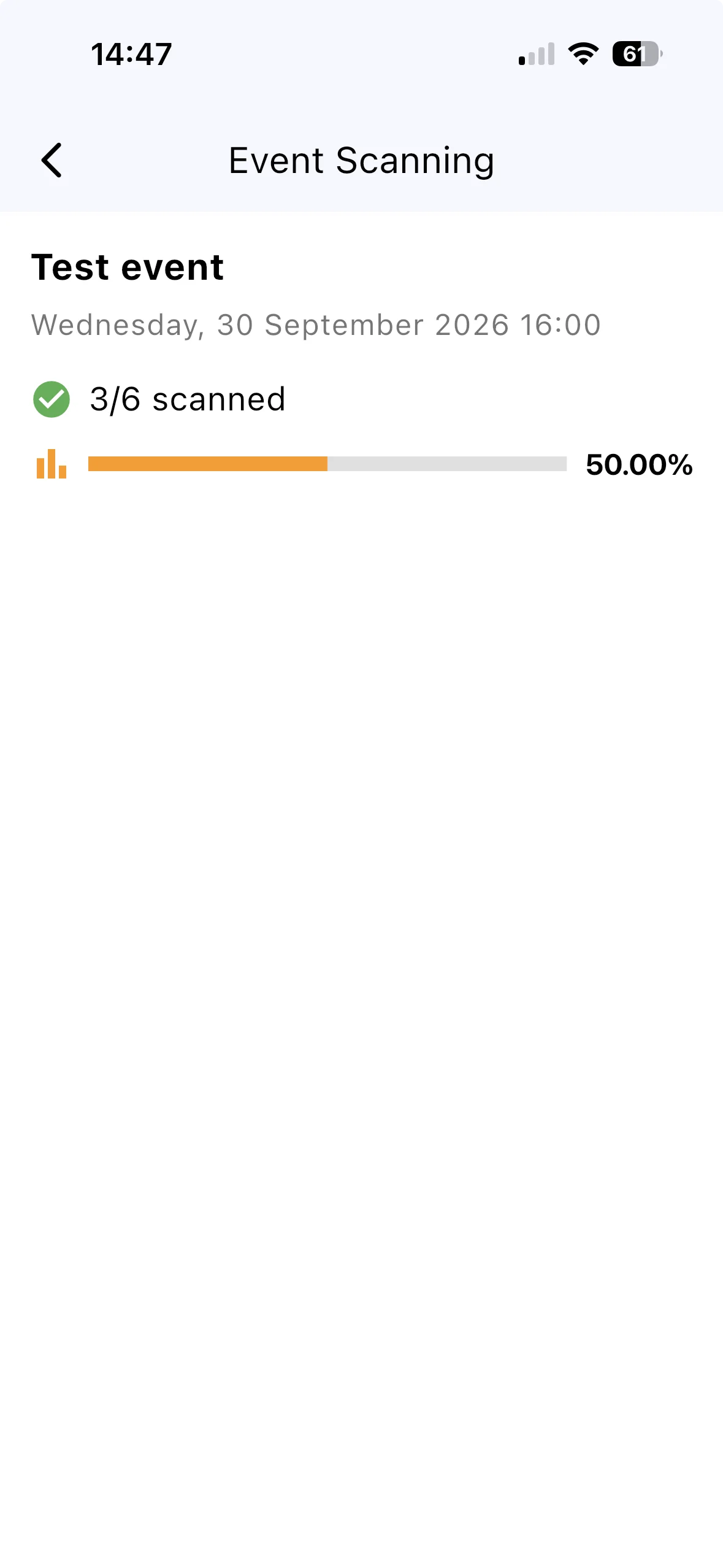
Organizers can follow the number and percentage of tickets already scanned. Administrators can view these figures in the app without opening a computer.
This helps the entrance team coordinate with venue staff and the stage manager. A figure such as 90 percent checked in is a useful progress indicator, not an automatic instruction to start the performance. When devices are offline, account for which data has actually been synchronized.
This administrator view is separate from scanner-only staff access. Temporary entrance staff do not need reporting access to do their job.
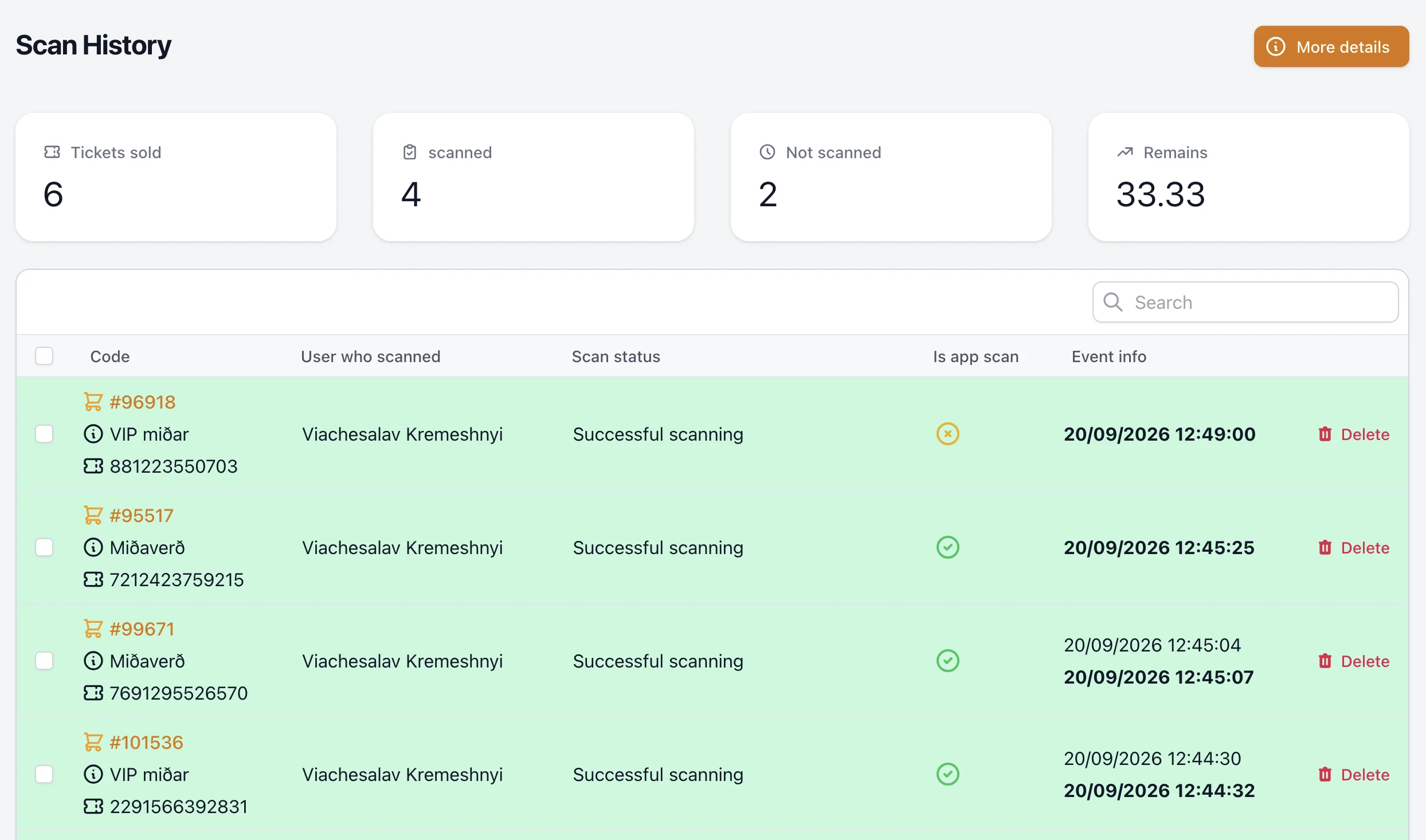
Live scan history and attendance statistics in the backend
In the backend, organizers can see tickets sold, already scanned and not yet scanned. The live history grows as scans arrive, showing the time, the staff member who scanned the ticket and whether the scan came from the app.
This example shows the same test event at a later moment: 4 of 6 tickets have now been scanned, with 2 remaining. It gives the organizer a view of activity at the entrance without having to ask each operator separately.
Scan Chart: follow check-in on the seating plan
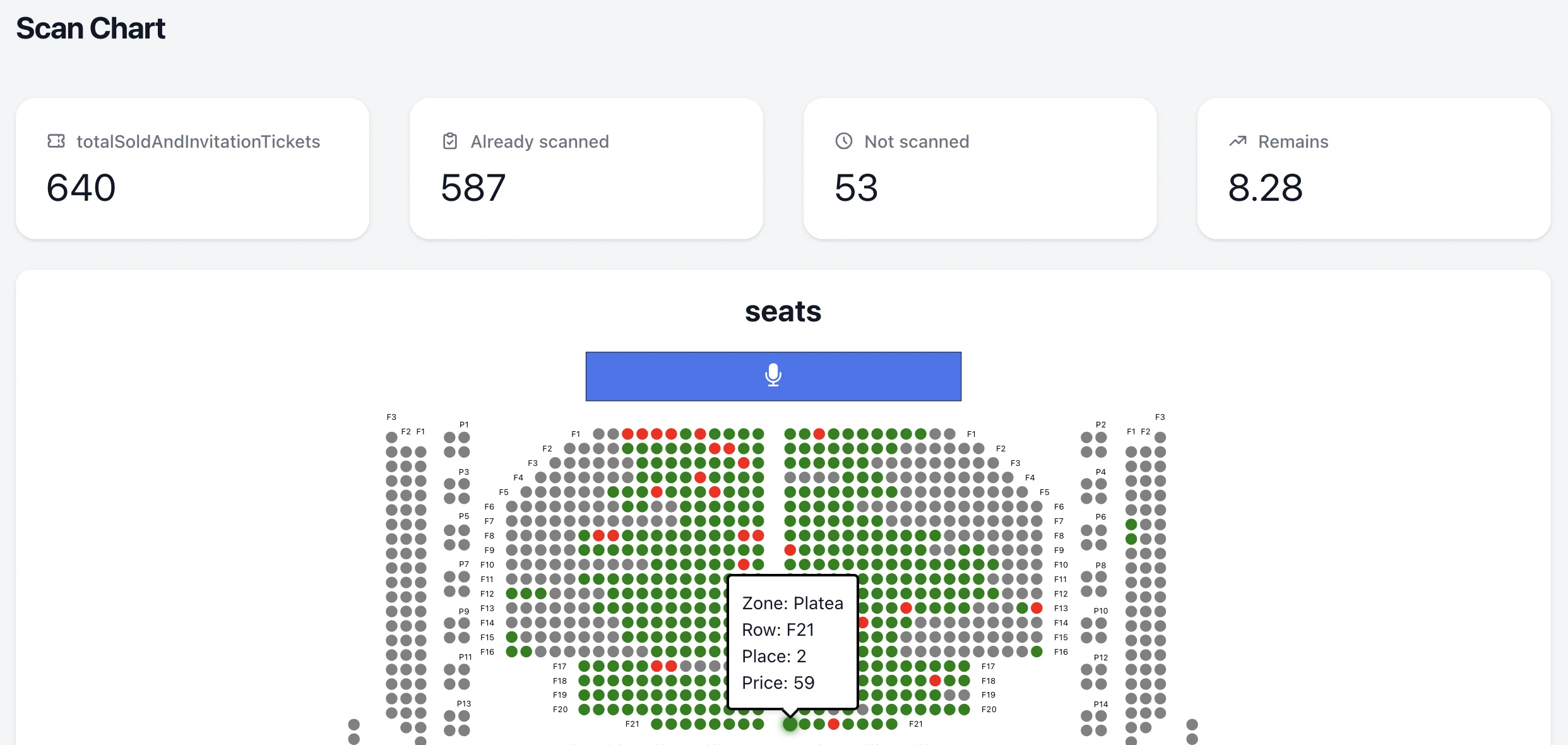
For seated events, you can also follow scanning status directly on the venue map. In the Scan Chart shown here, green seats represent tickets already scanned. Grey seats are unsold, so they are not treated as visitors still expected to arrive.
The view combines the layout of the hall with admission totals: in this example, 587 of 640 sold or invitation tickets have been scanned, with 53 remaining. It helps organizers coordinate admission progress with the venue team. Learn about our free seating chart setup.
Before doors open: a short scanning checklist
- Assign Scanner access, send invitations and test app setup in advance.
- Check the event start time, scanning window and repeat-scan interval.
- Import external tickets and test their original codes.
- Refresh offline ticket data close to doors opening.
- Charge devices and test scanners under the actual lighting conditions.
- Assign someone to handle unclear tickets and changes during admission.
If you are also preparing sales, see our guide to creating your own online ticket shop. For assigned seats, connect ticket sales with an interactive seating chart.